Prepare posts ahead of time
Save posts as drafts while you agree on images and copy. Once the content is ready, choose a publication date. Your team can prepare the week even if everyone needs to be on-site on the day.
The date for your next open day is set. Your team now needs an announcement, a page with the details, and an invitation for your newsletter readers. Use the relevant marketing modules in CleverHub for each task. Start with one question: what should someone do after reading?
Book a demo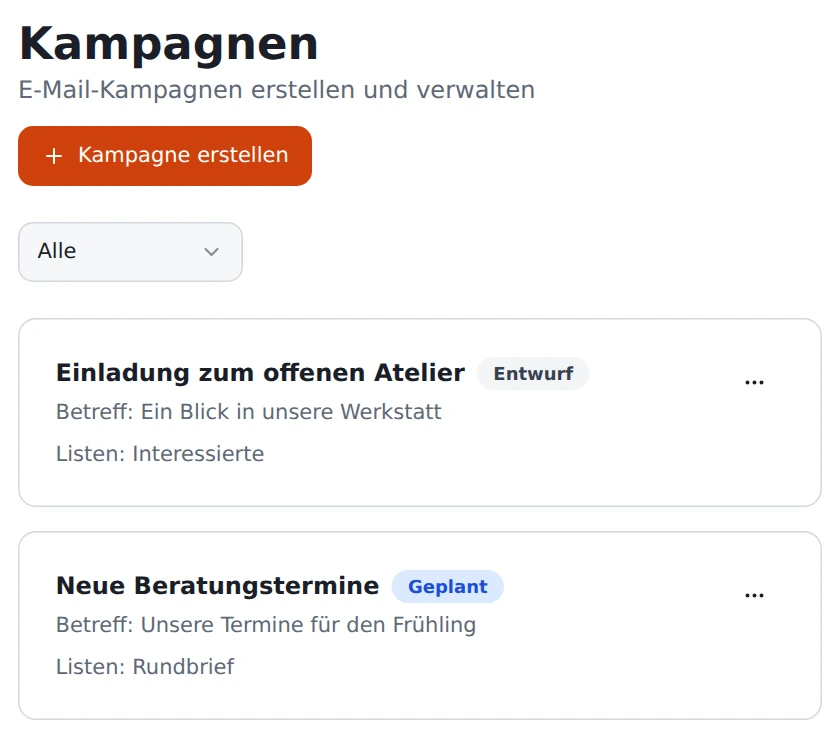
Save posts as drafts while you agree on images and copy. Once the content is ready, choose a publication date. Your team can prepare the week even if everyone needs to be on-site on the day.
Use the link page in your profile to point people to several offers. Give a specific event its own landing page, with room for the time, what will happen, and who would benefit from visiting.
A newsletter reaches people who signed up to hear from you. Write an invitation for that audience. Readers who already know your business may want to see the dates straight away, while someone seeing your first post needs a different introduction.
Start by writing the one sentence you want people to remember. Then create a landing page with the details they need. Open it on your phone and check the path to the contact option you want people to use.
Write two versions suited to the occasion. A social media post can spark interest in just a few lines. The newsletter can explain in more detail what to expect during a visit. Check that both link to the correct page.
Check which details still apply after the event. Update the link page and look for new reviews. If you ran an accompanying ad, review its budget as part of the follow-up.
Select the connected account in the post editor and prepare the content. Depending on where you are in the process, save a draft, schedule the post for later, or publish it. Match the text and images to the account where your audience will see it.
Collect the destinations you want people to reach from your profile. Before an open day, put the event link somewhere easy to see. Afterward, you can put your regular consultation offers first again.
Use the landing page builder to give a specific occasion its own page. Start with what the visitor gets from attending, then add the practical details. Anyone coming from a post about the event should know from the headline that they’re in the right place.
Set the campaign name, subject, content, and recipient list. Use the preview before starting the send. For example, the internal campaign name can identify the season, while the subject tells readers why to open the message.
Your team can read reviews and compose replies through the connected Google account. Feedback about the open day often calls for a different response from a general review. Read it in context before replying on behalf of the business.
For connected ad accounts, you can view campaigns and their budgets. The budget guard compares the current daily budget with the recommended amount. Before changing anything, review the campaign and the period it will run. A decision to adjust or pause an ad should suit the occasion and the budget available.
A fictional studio opens its workshop for an afternoon. The landing page gives the opening time and meeting point. A scheduled post shows how people work with the materials. The profile link brings visitors to the event details. For the newsletter, the team chooses the list of interested readers and focuses on a different question: what happens in a live demonstration?
After the event, the owner removes the announcement from the link page. A visitor has since left a Google review. The team reads it and writes a personal reply. If an ad ran for the event, the person responsible reviews that campaign separately in the ads area.

Yes. In the post editor, save a draft or choose a time to publish. Before scheduling, check the connected account and when the event takes place.
A dedicated page helps when an offer has several details to explain. For an event that might include the meeting point, schedule, time, and a way to ask questions.
The link page gives profile visitors a choice of destinations. A newsletter delivers a specific message to a selected list of recipients. Both can lead to the same event page.
Staff can read reviews and edit replies in the reviews area for the connected account. Agree who answers questions and who reviews complaints before a public reply.
Use a fictional event to walk through a draft post, a landing page, and a newsletter. The demo works especially well if you know which audience you want to invite and what you want them to do.